Showing posts with label HARDWARE TIPS. Show all posts

Friday, May 17, 2019

10 tips to keep your computer running and protect

10 tips to keep your computer running and protect


Okay! So, We are providing you ten tips and best practices to put in place on your computer to make it last in good conditions. Nothing very complex, just simple things and common sense that will allow your computer to last and resist the time and the different attacks how to avoid them.

NOTE: - Read the follow the tips to daily routines it will be very beneficial for you Computer to keep you data safe and protect.


1. Use two partitions on your hard drive
Why put everything on this famous C drive? With the large storage capacity of today's hard drives, it is possible to partition your hard drive into multiple disks. For example, a disk C where the system and applications are located and a disk D to store your documents, images, movies, music, etc. In this case, if you are worried, you can start a reinstallation of the disk C without leaving the data left on the disk D unaffected.

2. Have an updated antivirus
Obviously, you have to install an antivirus on your PC. Today, many free antivirus like (Avast, Microsoft Essential Security, Etc.) provide interesting protection for the needs of most users. Also note that the price of a paid protection has now decreased and it is possible to operate for a paid antivirus against only a few tens of money per year. But the best antivirus remains and will always remain the user.


You do not need to install two antivirus software on your computer. At best, the second will be ineffective. If one day you catch a virus, no need to think that your protection software is ineffective. Instead, think about reviewing your way of using your computer by asking yourself: how did I catch this virus? Malware is most often installed by surfing on suspicious or trapped sites, opening an email, downloading pirated software or after connecting an unknown device.

3. Never open the email of an unknown sender
When you receive an email from someone you do not know and / or is not clearly identifiable. No need to open it and click on the email link, you can directly delete it and report it as spam if your email box allows it. Tell yourself that if someone really wants to get in touch with you, not sure he already has your email. And then, he will be able to write a specific email object and identify himself clearly so that doubt is not allowed.

4. Update your software
We all agree on this point of updating. Updating Windows or other software never comes at the right time. But be aware that the majority of what these updates contain is about security. Software publishers are very sensitive to the security of their software and want users to always be able to use it safely. So, yes, it is long and tedious but it can save you a lot of hassle afterwards to update your system and your software regularly and thus block potential security vulnerabilities on your computer.

5. Do not download anything, anywhere
It is probably by downloading that the number of viruses caught is the largest. So you have to be very vigilant about the sites where you decide to download free software (we are not talking here about illegal downloading because by definition, it is illegal and is a nest virus). Privilege trusted sources of reliable downloads that you've seen cited on different forums / blogs. We will advise you better than to make you priority on the site of the publisher of the software that you want to download.

6. Have a safe and hidden password


If it's your date of birth, it's not better! You must privilege a password with at least 6 characters and if possible, include letters, numbers and special characters. Moreover, it often happens to find on PCs files with all the user's passwords or posts-it prominently displayed in front of the computer. Sometimes the file is even accessible on the desktop and called "passwords" ... If you cannot remember your passwords, password management software that will allow you to access them quickly. but most importantly, never write it on your PC. It makes you too vulnerable.

7. Do not install many toolbars on your browser
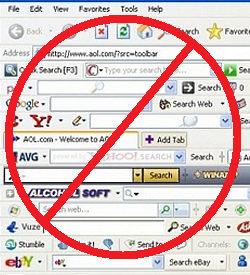

Who never ended up with one or more toolbars on his web browser and had the biggest penalties in the world to get rid of it? Very often, this kind of bar is installed at the same time as a software by forgetting to uncheck a box that is confused with the terms or conditions. You have to be very careful about this because these toolbars are rarely relevant, tend to slow down your browser and are full of advertising.

8. Check which software starts at startup
On Windows, you can set programs that start at startup. Some are of course required for the proper functioning of the PC but others completely useless and will tend to slow down the launch of the computer. It is quite possible to disable the launch of these programs at startup. This will have no impact on their future use and will allow you to get your machine started on the basics, faster.

9. Store and save your documents
Finish with loads of documents lying around on your desk without being stowed away.  All your documents will have to be on the disc D. Then, organize them! Pro, personal, etc. Also remember to make backups because owning two hard disk partitions will not be useful if the disk comes to give up. The ideal? Have a backup of your data on an external drive that you do regularly. Of course, this requires manual action unless you have a solution that can launch remote backups without logging in. 

The other solution to our essential sense is to have a copy of its data in a cloud type solution. Backups are automatic as soon as you change and are connected to the Internet. The risk of losing data is very low. If you have a lot, it will probably pay a little but the free offers are already very interesting. And do not hesitate to diversify: photos here, pro there, etc. In this area, we can not recommend too DropBox for its ease of use or Google Drive.

10. Make a regular cleaning


A computer is like a precious thing, you have to maintain it regularly. This means that you have to clean it physically. Do not hesitate to pass a dry air bomb through the holes if you notice that it is too hot and that a lot of dust has accumulated. But cleaning also means emptying the recycle bin regularly, defragmenting your hard drive, clearing cookies, hiding the browser, removing unnecessary software, and so on. All the little things that, alone, will have little effect but in the end, will restore fishing to your computer. In this area, a small software is very effective to manage all these tasks. Here is CCleaner and other many software to clean it up, we highly recommend it.
6 Worth having tips to save money on PC repairs

6 Worth having tips to save money on PC repairs


You do not have to pay money on technical assistance to repair your PC > 90 percent of the repairs are simple and can be done in minutes.
In 2007, I got my first IT job. Until then, my computer knowledge was completely self-taught, and I was regularly able to find deep in cables and PC cases and share parts to push performance a little bit further.
Before the home PC revolution of the 1990s, the most technical thing I've ever done was trying to connect a 9, 6 Kbps modem - and that was when I was 21. I had grown up and gone to university before I really discovered the world of arithmetic. In fact, my interests and my career were in a completely different direction.
15 years later, and although I'm not a Linux master or Microsoft, NET wizard, I can certainly handle the hardware side of computers. I've learned how to fix computer hardware, and I'm pretty confident, Yes, you can save money. I never paid anyone to fix a PC.
The secret is to understand how the different parts of the PC work together. Not everything is interchangeable and the integrated components and chips on the motherboard should be largely avoided during DIY repairs. However, the hard disk drive, power supply, RAM modules, processor, optical drive, and motherboard can all be manually repaired, replaced, or both if they fail. Each computer dies in the end: learning which parts can fail and what to do About It Every computer dies in the end: Learn which parts can fail, and what you do about it Most computers develop problems over time. Knowing what they are and how you can handle them is important if you do not want to pay through the teeth for professional repairs.

1. Hard disk recovery and replacement
Probably the most common problem is a hard disk error. This may be due to dying hardware or a problem that occurs after infection with a computer virus or other malware.
In either case, you'll likely have a large amount of data that needs to be restored so you can continue to use it. Software Guide Explains How To Diagnose And Repair A Dead Hard Drive To Recover Data.


A few years ago I experienced a hard drive failure. I was at work when my laptop suddenly seemed particularly strange. About half an hour later, the hard drive sounded audible and the laptop. It is the right place to get started, and if you've successfully recovered and backed up your data, you'll need to buy a new hard drive. Installing a new drive - as with most PC components - is straightforward and can be done in most cases with minimal effort. For higher speed and reliability, you may want to install an SSD. The Complete Guide to Installing a Solid State Hard Drive in Your PC A solid state hard drive is one of the best upgrades available for a modern computer. It dramatically increases program load times, which in turn makes a PC feel faster.

2. Test and replace your power supply
Another common problem - especially with older devices - is a faulty power supply. While general maintenance and cleaning can keep your PC clear of clogged dust, your power supply (probably your dead skin cells and other substances) will make your power supply unusable.


If waiting for a new power adapter is a long way to the next store, or a morning at home waiting for the deliverer and you have to get up desperately, you can always try a power supply from an old computer. Can I reuse my old PC's power supply on a new computer? One of the best ways to reduce the cost of upgrading your PC is simply reusing the components that do not need to be updated. Yes, you need to replace the video card or processor. Maybe one that you have stored in the store room.

However, this should only be a short-term solution. Your best bet is to pick a new power adapter, make sure it's perfect for your computer and the way you use it Power Supplies explained: How to choose the perfect power adapter For Your Computer Most geeks interested in buying new hardware or building a new system think of the processor, the graphics card, and perhaps the hard drive first. These components have the biggest impact on performance.

3. Replace and update RAM modules
Not every memory is created equal. For example, cheaper RAM modules are slower and less reliable, while multiple sticks of RAM should be the same for best results (the slowest in the group reflects the highest available speed).


If you need to upgrade your RAM memory, you'll need to be careful when choosing the right module for your motherboard and processor combination, but apart from that, replacing a RAM module is as easy as inserting a hard disk.

4. If your computer needs a new CPU
One of the biggest disappointments with troubleshooting a PC is the discovery that your CPU needs to be replaced. On the other hand, if you plan to update it and have chosen well - perhaps with our slang smashing guide for dual-core and quad-core differences What Does "Dual Core" & "Quad Core" Mean? What does "Dual Core" & "Quad Core" mean? Long ago, your CPU came with a single core. Nowadays most CPUs are at least dual core and probably quad core. But what does dual, quad or octo-core mean? Read more to help you with your choice - it can also be an extremely exciting time.


The processor remains one of the most important components in a modern computer. The upgrade can bring significant benefits for certain games and applications, especially if you're switching from a dual-core or quad-core model, is also pretty amazing.

5. Problems with your optical drive? Try this Solution
You may have noticed that the components with the most moving parts are the ones that can cause most problems in your PC. Hard disks can fail due to mechanical parts; So can CD, DVD and Blu-ray drives - collectively known as optical drives.


There are several reasons why your DVD or Blu-ray Disc may not play Why does not Windows play my DVD or Blu-ray Disc? Why does not Windows play my DVD or Blu-ray Disc? You insert a DVD into your Windows 8 computer - you want to watch a movie. Nothing happens. You are trying to open Windows Media Player. It cannot play the hard disk. What's wrong with Windows 8, you should investigate, though if you find you need to replace the device, just calm down knowing that it's an almost identical procedure to fitting a hard drive

6. Repair and replace your motherboard
Of all the problems that can arise when troubleshooting your PC, motherboard problems may be the hardest to deal with.


It is not just the fact that each component must be removed and disconnected before safely removing the motherboard; a wrong move with a screwdriver or even if you put the motherboard in the case and you have to buy a replacement. Of course, there are a few simple problems with the motherboard. BIOS issues often relate to jumpers.

Note:- Try these tips to avoid wasting money.